Gmail Gets New Contact Manager and New Look

Posted On // Leave a Comment
Gmail has finally got a new contact manager, which is 100 times better than the earlier one. The new contact manager is fast and easier to use, and is definitely a welcome change to one of the best email services available online today.


I have been a Gmail user for a while now and to be frank, managing contacts was definitely a pain. The older contacts interface was mediocre at its best when compared to how powerful Gmail in itself was. However, that is now a thing of the past as Google is rolling out a new contact manager for all Gmail users starting today.

The new contacts manager has a more prominent link as seen in the first screenshot above and will also work pretty much like Gmail works, fast. The new contacts manager now supports Keyboard shortcuts, sorting by name, custom labels for contact fields, ability to undo changes you made and automatic saving just like Gmail compose among other things.
In addition to the contact manager changes, Gmail also sports links to Mail, Contacts and Tasks in the top left and displays a Compose mail button instead of a text. There is also some screen estate recovery thanks to the reduction in the header area. However, Google has also made it a bit painful to select messages by removing the links and putting it into a dropdown.
Overall these changes are pretty good and make Gmail the best free email service out there. The new changes to the Gmail contact manager and overall email layout will be rolled out to all users in a phased manner.
(Official Gmail Blog)

Please Pass Your Valuable Feedback Through Comments...! :)

[Read more]

How to set up Blogger custom domain with GoDaddy

Posted On // Leave a Comment
Hi Friends,one of my friend and blogger...! Has transferred is blogger  to Wordpress and got a .com Domain from godaddy.com,so...it helped me think about it and  write this article on my blog.I think it may help you..! :)

How to set up Blogger custom domain with GoDaddy
Here are few simple steps to set up a custom domain from GoDaddy to point on your Blogger blog. I select GoDaddy’s domain since they are one of  the cheapest domain register on the web.First let’s discuss on how we can set up a Blogger/Blogspot blog custom domain with GoDaddy, then I’ll be discussing on my next post on how to set up the custom domain on Blogger.


1. Log in to your account at www.godaddy.com.
2. Open the Domains tab and select My Domain Names. You'll be directed to the Domain Manager page.
3. Click the domain that you'd like to use with your blog.
4. Click the Total DNS Control And MX Records link at the bottom of the section entitled Total DNS.
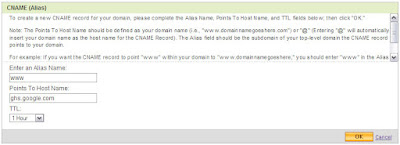
5. Look for a record prefixed "WWW". If there isn't one, add a new CNAME record; if there is one, you'll need to edit this record instead.
6. For the Name, enter only the subdomain of the address you want to use for your blog. For example, if you picked www.mydomain.com as your address, enter “www” here. (you can leave it as is)
7. Enter ghs.google.com as the Host Name. Specify a TTL or use the default setting of 1 hour.
8. Click OK, and then click OK again.
Example Image Below
How to set up Blogger custom domain with GoDaddy
If you are getting confuse on what to fill up on Step 6, personally I don’t modified it and leave it as is “www” since it is just a “name” for that set up and when you are not hosting your Blogger blog then it has no bearing at all. I think it will be necessary if you will be handling or hosting a site with subdomains, labeling as alias is great to organize your domain set up. So basically you just need to modify “Host Name” by entering “ghs.google.com”.

Now it is advisable that you set your URL with appended “www”, like Example http://www.tsksoft.com than http://tsksoft.com ,("Please Note That(www.tsksoft.com)Is Just An Example Domain Name And "TSKSOFT" Don't Have Self-Hosted Domain Yet").

Here are few steps to set it up on GoDaddy;

1. Log in to your account at www.godaddy.com.
2. Open the Domains tab and select My Domain Names. You'll be directed to the Domain Manager page.
3. Click the domain that you'd like to use with your blog.
4. Find Forwarding and click Manage.
5. Enter your URL with appended “www” as www.yourdomain.com, then tick “Update my DNS settings to support this change. (Recommended)”, clicking the “Advanced Option” will show you that your URL is permanently forwarded (permanent redirect 301) to your specified www.yourdomain.com.
5. Click OK.
Example Image Below

You need to wait for few minutes to test if your forwarding is working; you can check it by typing to your browser address tab your URL without appended “www” (http://yourdomain.com) then you’ll see if the page load the URL will be automatically change to http://www.yourdomain.com.

If you’re encountering troubles setting up this process, you may leave your questions & comments on the comment form below and I’ll try to answer it as soon as possible!! :)

And Friends,Please pass your valuable feedback through comments...! :)
[Read more]

How to Make Your WordPress or Blogger Blog DoFollow

Posted On // Leave a Comment

What does becoming DoFollow mean? It simply means that you are allowing each commenter’s links in your comments section to be nofollow free. It is like a reward to the people who take the time to leave a comment on your website, allowing their links to be fully useful when search engines crawl your post.
So how do you make your blog DoFollow?
Self-Hosted WordPress Blogs
For self-hosted WordPress users, it is pretty easy. Simply go to your Dashboard > Plugins > Add New and search for DoFollow. You should receive a list of current DoFollow plugins that you can simply install and activate. Once activated, these plugins automatically make all of the commenters’ links (past and future) DoFollow.
Blogger / Blogspot Blogs
For Blogger / Blogspot blogs, you will need to do a few things. First, under settings, allow Anonymous users to comment. This is the only way your commenters will have the Name / URL option. Then, go to your Layout tab > Edit HTML. From here, you will need to Download Full Template, which will be an XML file.
Open the XML file in a text editor. Just in case there are any problems, first save a backup copy of your template. Then do a search by using CTRL+F and search for "nofollow". You will find two lines that which you should delete the  rel=’nofollow’  from the below code...!


<a expr:href='data:comment.authorUrl' rel='nofollow'><data:comment.author/></a>


<a expr:href='data:backlink.url' rel='nofollow'><data:backlink.title/></a>

Save your template xml, and then upload it. Now your Blogger / Blogspot should be free of nofollow links.
[Read more]

Falcon Blogger Template : Converted Wordpress Template

Posted On // Leave a Comment
Hi Friends,This Template Is A Wordpress Template And By The Help Of A Friend And Blogger Krishna . The Template Has Been Converted Into Blogger Template.So,You can Use It For Blogger


This Blogger Template is very professional blogger template that is converted from word press theme to blogger with great effort. It has all things you are looking for like Clean Read more posting, Search box, and RSS , Ready Social Widgets, Twitter Widgets,Ad Banner, Featured Posts and more....

Template Information:

Template Type : Blogger Template
Template Name : Falcon Blogger Template
License : Free Template + Creative Common License
Converter : BloggerTheme
WP Designer : Web2Feel


Please Pass Your Valuable Feedback Through Comments...


And Please Use "CTRL" When Clicking The Preview Or Download Button,To Open In A New Window....!
[Read more]

Game Craft: Wordpress Template for gamer blogs and movie blogs

Posted On // Leave a Comment

Hi Friends This Is Our First Wordpress Template Posting Here And It Is One Of My Favorite Template...!

Releasing a New Wordpress Theme For Gamer Blogs and Movie Blogs. The name of the theme is "Gamecraft". The theme is WordPress 3 compatible with custom menu feature, custom post thumbnail, jQuery featured post section, featured video, Twitter updates, Banner ads, adsense etc. The theme also has an options page from where you can configure different custom settings.
Please Use "CTRL" When Clicking The Preview Or Download Button,To Open In A New Window....!
And Friend's Please Pass Your Valuable Feedback Through Comments...


[Read more]

Aparatus: Free Premium Blogger Template

Posted On // Leave a Comment

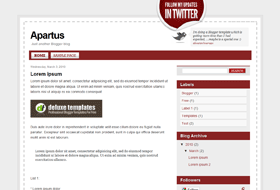
Blogger Template: AparatusAparatus is a free premium like Blogger template which is packed with features and design delight that aims to tickle your innermost web mag fancy.

Features: 2 columns, twitter icon , fonts and colors are fully customizable, pages are enabled and it has twitter pre installed
[Read more]