Top 5 Gmail Labs Features You Must Enable Right Away

Posted On // Leave a Comment
We all know Gmail is one of the most famous email based service in the world.It is one of the simple and easy way to use and which has most powerful features within and also under the hood it has more features where you can enable more advanced functionality which we call it as "Labs".

Actually what is meant by Gmail Labs:
Gmail itself says that:


Gmail Labs allows you to try out experimental new features in Gmail. If you're going to brave the Labs world, it's important to keep the following things in mind about these features:

  • They may break at any time.
  • Similarly, they may disappear temporarily or permanently.
  • They may work so well that they graduate and become regular features.
So,Try at your own risk of course none of these features will not harm you in any kind or gobble your email but they are just not polished at Google would want them to be.


To enable the Labs in your Gmail,Just login to your Gmail account and click on the settings link and then select the Labs tab.Now select Add-ons you like from the list by 'Enable/Disable' radio button and save the changes you done by clicking the Save Changes button


I found Some of these Add-on Features to have a worth useful...check out right now:

Inbox Preview :


This Add-on shows you the latest mails you had in your inbox as a preview before you enter into inbox.It will be very important if your waiting for any important mail.Well if it loads slow for slow connections,I prefer you to use Basic Html.

Mouse Gestures : 

These Add-on helps to surf Next or Previous mails by holding right-click and move your mouse Left or Right to go for a previous or next messages.And if you move up you will be back into inbox.These is one of the best alternate way of browsing your mails,Of course you require a little practice.

Undo Send : 

These is the one of the Best Add-on because we can Undo the mail we sent.It is a most helpful Add-on for many of them since all of us make a minor mistakes while we send mails to others.It adds a Undo option feature to allow the mail revert which we sent.Of course i think these feature will be available for 5-10 Seconds after you sent the mail.But these Add-on is worth for most of them and also useful.

Custom Keyboard Shortcuts :


It lets you add custom keyboard shortcuts you define and it also add a new settings tab to re-define keys.

Inserting Images :

Allows you to add Images into your mail(message body).You can upload the images and insert from your computer or you can also insert by image Url
Note :These Add-on Feature will not work if you have offline enabled.


If i found any more new Add-ons useful...These Post Will Be updated with new Add-ons and Also Let Us Know If You find any add-ons useful.So,that we i update the post with more Add-ons here 
So,Don't Go Away...! Stay Updated With Us
And Also Please Drop Your Valuable Feedback Through Comments
Have A Nice Day :)
[Read more]

How To Show HTML/CSS Codes In Blog Posts

Posted On // Leave a Comment
Today i am going to teach you how to add Html codes in blog posts.By default web browsers read the code as a program rather than showing the code which you like to show up to your visitors or any other.So,its makes much difficult to make that way of showing the Html/Css Code and it is the most common problem for Blogger beginner's and Intermediate users.So,Now when we come back to the topic.I am going to teach you how to show up the Html/Css Code in a Box with good looking background.

Let Us Start The Topic:


  • First go to Blogger and then Sign-in
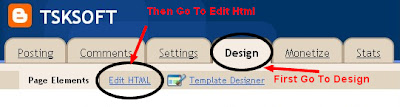
  • Go to your Dashboard--Layout(Design)--Edit Html


  • Now just copy the following code which is shown below and paste it before  ]]></b:skin>
--Note: Download your existing template Before you save changes in the template


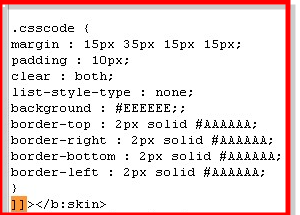
.csscode {
margin : 15px 35px 15px 15px;
padding : 10px;
clear : both;
list-style-type : none;
background : #EEEEEE;;
border-top : 2px solid #AAAAAA;
border-right : 2px solid #AAAAAA;
border-bottom : 2px solid #AAAAAA;
border-left : 2px solid #AAAAAA;
}

For More Info you Can See How To Add The Code In The Below Image:

  • Now save you template to make the changes apply

From Now whenever you like to add a code in your post just add the code between 
<div class=”csscode”> and </div> like these as Shown below:


<div class="csscode">
HTML Code Here
</div>


That's it....!
Now you can show any of your code in a separate box easier to use
Please let us know if you any problem via comments
Have A Nice Day...!

    [Read more]

    Thesis Blogger Template

    Posted On // Leave a Comment
    Thesis Template is one of the best and popular WordPress theme which has many features.These template has been provided by DiyThemes for WordPress users.And i am very happy to announce that these Great Thesis Template has been now available for blogger also.By the help of Anup who Blog at "Hacktutors" the template has been successfully converted to use in blogger,Thanks to him for his great help and effort in making the temaplte available for blogger users also.Now these template is totally free(But Please Don't Remove Footer Credits).These Template Have 2 columns,Where you can have the chance to keep many widgets and ads you like and these template is mainly converted based on ShoutMeLoud.


    Features of Thesis Template:


    Well,these template has 2 stylish columns one is post body and the second one is the side bar where you can keep widgets and ads.Now at the bottom of this template you can have 3 rows also.


    This template also consists of Read More hack with automatic thumbnail to make the template more professional.So,It will not annoy your visitors with large posts and loading slow


    Readers can easily also comment on any of the post by clicking "Add your comment button" which consists on Home Page...! you can see in the above image and also, you can also see, how many comments are there in each of the blog posts.


    The template has 2 navigation bar at the top of template where you can add the main link to your blogs post or any categories.


    On the bottom of these template you have 3 rows where you can add optional widgets like About Me, Categories and so on what ever you like...!


    It has a Numbered Page Navigation at the bottom of each page...Which is so popular which makes easier to navigate. 


    Once Again Let Us All Say Thanks To Anup The Blogger At "Hacktutors" For Making The Template.
    And My Dear Loyal Readers And Friends Please Pass Your Valuable Feedback Via Comments...!
    Lets Us Know What Do You Think...!
    Have A Nice Day And Blogging.


    Note:The template has been updated please download from the below link


    [Read more]

    Html Color Codes Generator For Bloggers And Web Developers

    Posted On // Leave a Comment
    We all know about color picker which you also use in Photoshop and other photo editing tools for changing colors.Almost all the webmaster's and designer's use the Photoshop tool for editing the images and color to pick and edit.

    These tool helps you to pick your favorite color and it's code,Every color has its own unique color and code to use.So,these makes webmasters and developers to choose color picker tool who often use in Photoshop.I found the similar tool which we use in Photoshop,So you don't need to go for the color code to pick in Photoshop always.

    Instructions On How To Use The Tool :
    • In the section Hue drag the black bar vertically to generate the suitable color to pick.
    • The Swatch bar shows you the final color result that you had chosen in the tool.
    • The main three color Red Green Blue (RGB) appears on the bottom center which is based on the color that you have choose.and to pick the color code go to the Hex box which is shown below in the tool.
    • Choose the color you like until your satisfied with the color and pick the code from  Hex box.
    • Now,Drag the cursor in the tool from Brightness/Saturation section.Then choose your suitable color from the tool


    If you had a problem with the tool and don't know how to use it please don't hesitate to ask me by your valuable comments.
    Have a nice day and blogging...!
    [Read more]

    Sitonomy-Checkout Which Services They Are Using

    Posted On // Leave a Comment

    Well,Do you wanna know which services are using by Top sites and Blogs? .Now you can Track your favorite sites by using Sitonomy.These Great site has many features which helps you track other sites or competitors on Technical information like Visitors,Site usage,Advertising Networks,Feed Providers,Blogging platform and other Analytics which helps you a lot...!


    And the Sitonomy Site itself describes as "Sitonomy is a free service that allows developers and designers to find out which technologies are used in a specific blog/site. Together with the provided statistic information of popular technologies, this service makes it easier to decide what technologies are suitable to your own site"


    These are the services which the site provides much easier to navigate and it provides great info all the details you need....!
    So,What's your waiting for...!! A Must try Tool-Sitonomy for everyone.Mainly For Webmasters and Bloggers and Please say your Experience on these tool And your Valuable Feedback through Comments
    Have a nice day and Blogging.Twitter
    [Read more]

    7 Cool Twitter Tools for Multiple User & Group Tweeting

    Posted On // Leave a Comment
    Clearly, Twitter is undoubtedly the topper when it comes to Social Media Marketing tools. Out of all the tools we use today for social media marketing, Twitter tools are the most versatile and obviously most sought after. One of the good feature about Twitter is that more than one person can use it at the same time. Multiple account tweeting is a reality today with big corporations or just about anyone with a peer team manages one single Twitter account collaboratively.

    Who does group tweeting and why ?

    Collaborative tweeting or group tweeting are done mainly when there is a team managing a single twitter account. Many people use Twitter for Customer Service, and there is often a team that works in shifts to manage a Twitter account 24/7. Social Media management requires 24/7 monitoring, therefore managing between multiple users becomes a necessity.
    Here are some group tweeting/ collaborative shared Tweeting tools that should help you.

    1.  Media Funnel


    A professional group tweeting tool that lets you manage your tweets among colleagues and peer team. Analytics and event tracking for tweets are possible with this tool making it the best among the lot.


    2. Objective Marketer


    Really impressive tool that lets you schedule tweets, run campaigns and even measure them right inside the tool. Very promising tool, but costs a bit on the higher side.


    3. Hootsuite


    Probably the most popular among all Hootsuite is the most reliable tool when it comes to scheduling tweets and multiple user management. Easy to manage, Hootsuite is undoubtedly the best tool out there.


    This tool is more like a social media monitoring tool in itself, with excellent reports on social media mentions and sentiment reports. To add to it you can run campaigns with multiple users involved. Very impressive tool.


    5. Split Tweet


    This is a multi user twitter management tool and an analytics tool combined together with no other distractions. You can use it for campaigns on brands and specifically target a social media channel. however, comparing it with other tools, you’ll miss some advanced features here.


    6. Co Tweet


    An amazing social media dashboard tool created specifically for Twitter, it lets you do lot of advanced things like multiple user management, specific keyword monitoring etc. The best thing is that it has a very simple interface even with all the complexities.

    If you know more such tools, do let me know in the comments.
    Have a nice day and blogging...!


    [Read more]